Analyze your conversation
Upload the Unbubble CSV for a free preview of your real conversation.
Unbubble is the free iPhone app that exports a whole text or iMessage conversation straight off your phone, with no Mac, PC, cable or backup. This guide walks through every screen, shows what each one looks like, and gives real times for conversations from a few hundred messages to a hundred thousand.
By Layne Weant
Published
Updated
Install Unbubble from the App Store, open it and tap Start Export. Add the Unbubble Shortcut when asked, pick a one-to-one conversation and tap Always Allow, then keep Unbubble open, unlocked and plugged in while it reads every message. When it finishes, choose CSV, PDF or CSV with attachments and save the file to Files or share it. Unbubble runs on iOS 26 or later and needs no Mac, PC or account.
Seven steps from the App Store to a finished file. Each one is shown in detail, with a screenshot, below.
Three things make an export run from start to finish without a pause.
Get Unbubble free from the App Store and open it. The first screen lists the three steps ahead and one button: Start Export.
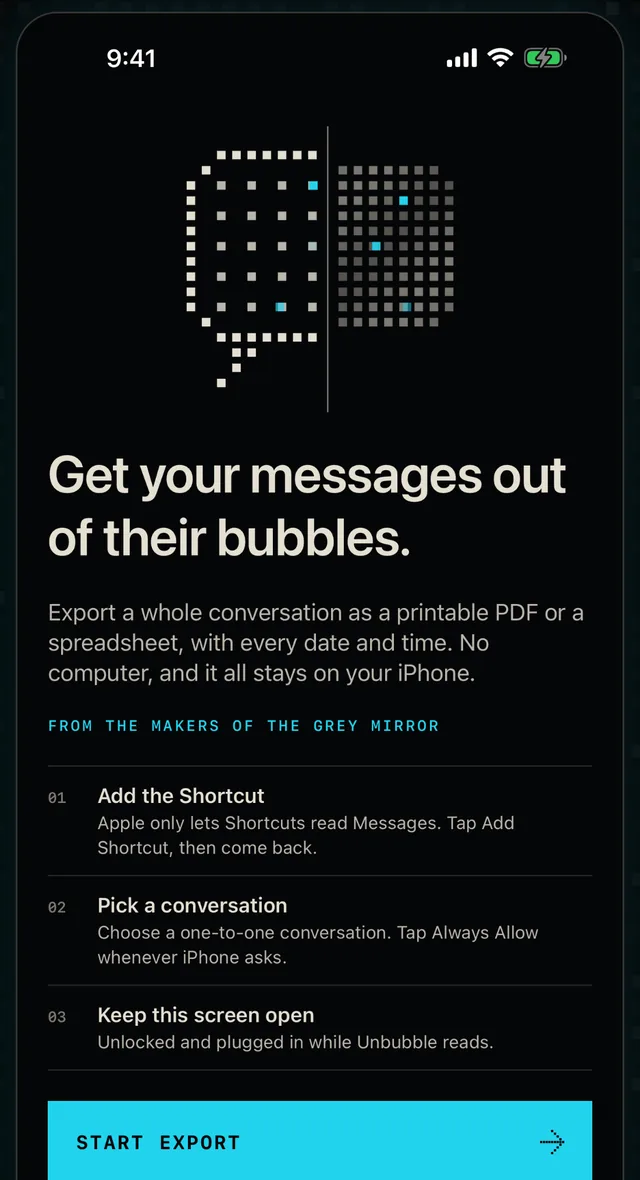
Apple only lets Shortcuts read Messages, so Unbubble reads your conversation through a Shortcut you approve once.
Choose the one-to-one conversation you want to export.
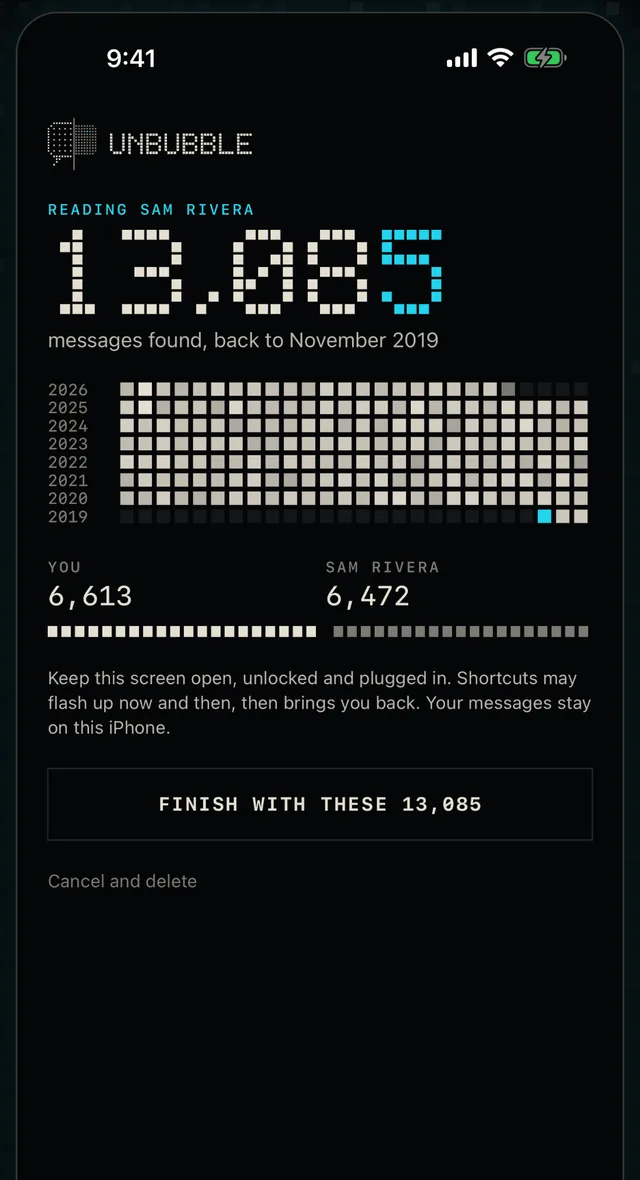
Unbubble now reads the whole conversation, newest to oldest. The big number counts the messages it has found, the grid fills in month by month, and the line under it shows how far back it has reached, with a separate count for you and for the other person.
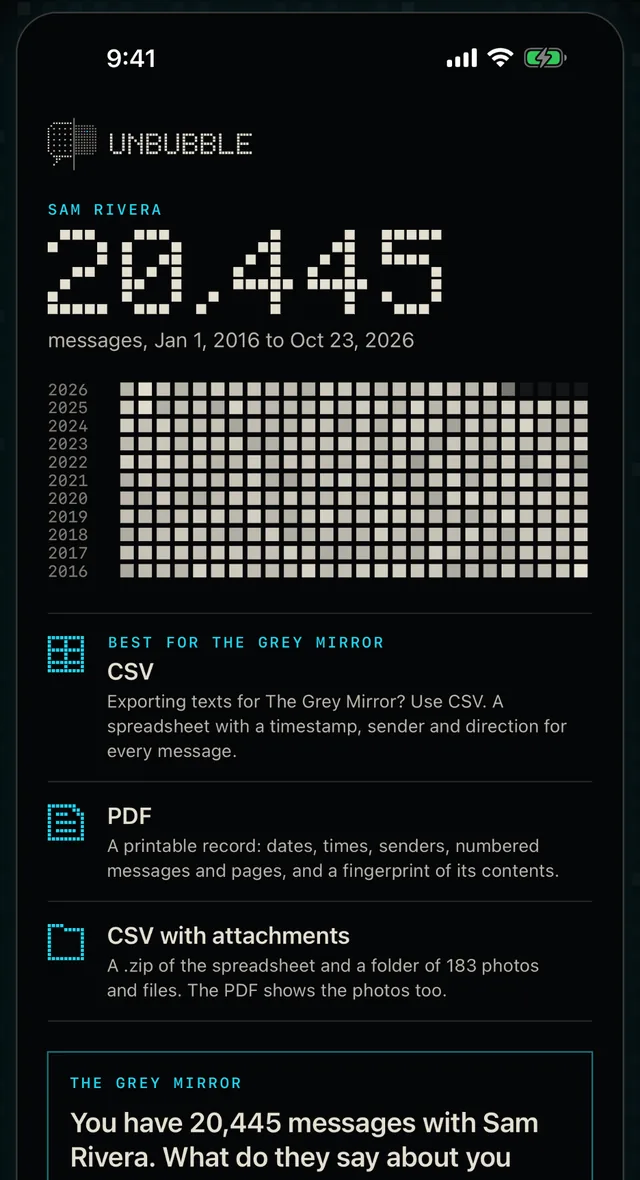
When the reading is done, Unbubble shows the full count and date range, and three ways to save it.
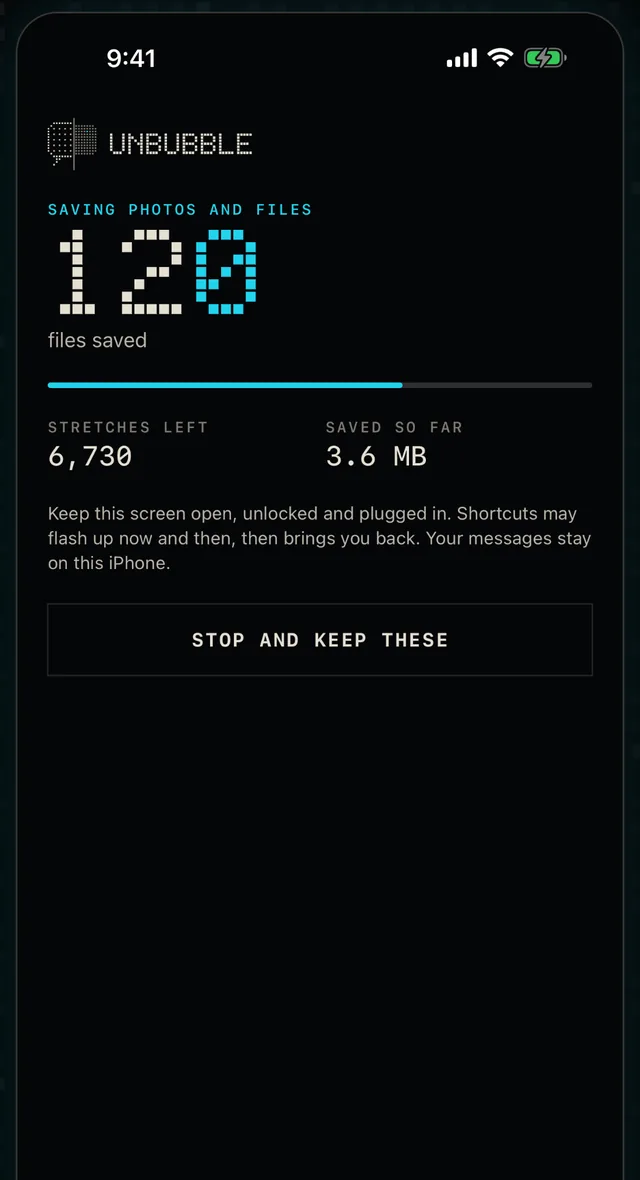
If you chose CSV with attachments, or a PDF of a conversation with pictures, Unbubble saves every photo and file next. The screen counts the files saved, the stretches left and the size so far.
Unbubble hands you the finished file. Save it to Files, AirDrop it, email it, print it, or open it in another app. The export lives on your iPhone and goes only where you send it.
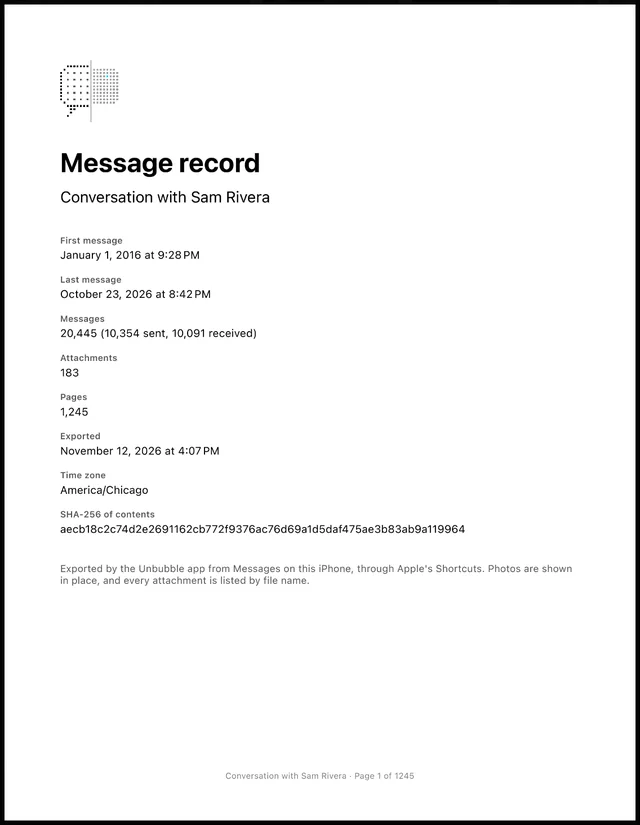
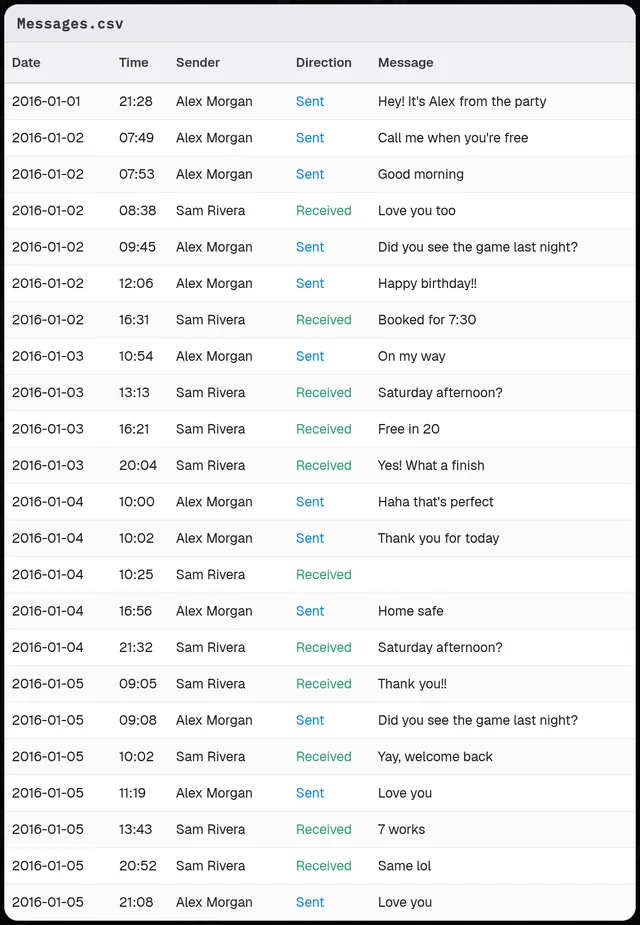
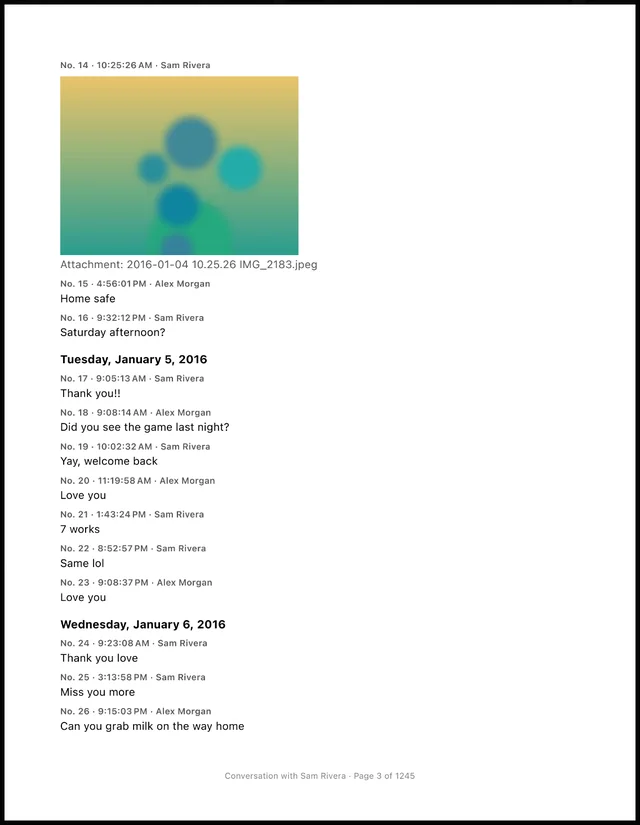
These are real times from 99 conversations read straight off iPhones in November 2026, from the moment reading started to the moment it finished. Each row is the middle value for conversations of that size.
Almost every pause comes from the phone locking or another app taking the screen.
Once the conversation is out of its bubbles, The Grey Mirror reads all of it and shows who starts conversations, who puts in more effort, who apologizes, who goes quiet, and the weeks when it changed. Unbubble offers it right after the export, and the CSV is the best file to use.
Install Unbubble, tap Start Export, add the Unbubble Shortcut, pick a one-to-one conversation and tap Always Allow, keep the app open while it reads, then choose CSV, PDF or CSV with attachments and save the file.
Measured on 99 real conversations read off iPhones in November 2026: about 7 minutes for 3,000 messages, 12 to 16 minutes for 7,000 to 15,000, about 34 minutes for 29,000 and about an hour for 50,000 to 100,000.
Apple only lets Shortcuts read Messages. Unbubble runs its Shortcut in stretches, so the Shortcuts app flashes up and brings you back. Keep Unbubble on screen and let it continue.
No. Unbubble exports the conversation on the iPhone itself, with no computer, cable or backup.
CSV for spreadsheets and for analyzing the conversation in The Grey Mirror, PDF for a printable record, and CSV with attachments to keep every photo and file.
Yes. The PDF shows photos where they were sent, and CSV with attachments saves every photo and file in a .zip next to the spreadsheet.
Yes. There is no subscription, account or paid unlock.
Any iPhone running iOS 26 or later.
Follow the sequence
Visual guide updated
Tap Start Export, add the Unbubble Shortcut and tap Always Allow.
Keep Unbubble open, unlocked and plugged in while the count climbs.
Choose CSV, PDF or CSV with attachments and save it to Files.
About 7 minutes for 3,000 messages and about an hour for 50,000, measured on real iPhones.